I Turned a 6-Year-Old Laptop Into an AI-Powered Home Server
· 7 min read
There was a laptop on my shelf doing absolutely nothing.
Six years old. An 8th-gen Intel Core i5, the low-power U-series kind. 16 GB of RAM, which is honestly more than some cloud servers I've paid for. A decent SSD. The battery had seen better days, but the machine itself was fine. It just sat there, slowly becoming furniture.
And I kept thinking: that's a server. That's a perfectly good, always-on, silent little server that I already own.
So I wiped it, put Ubuntu Server on it, and went looking for the thing I'd run on top. That's where it fell apart.
Everything I tried was almost right
Every home server dashboard I found did one thing well. One was a lovely app launcher with no idea what my CPU was doing. One was a monitoring tool that couldn't install anything. One was a NAS that wanted to own the whole disk. A couple were so enterprise-shaped that setting them up felt like filing taxes.
None of them let me sit on my phone, somewhere far from home, and say "hey, why is the fan screaming?" and get an actual answer.
Then there was the network. My internet comes through an Airtel router that doesn't do port forwarding, and like most home connections here it sits behind CGNAT. Translation: my public IP is shared with a bunch of strangers, and nothing on the internet can connect in to my house. Ever. Half the self-hosting guides on the internet start with "first, open port 443," and I couldn't even get to step one.
So I did the obvious, irresponsible, fun thing.
I built my own.
The overview: live CPU, memory, disk and network above a scrubbable history chart. Captured from the dev build on my Mac, hence "Apple M5"
The plan: small, fast, and actually mine
I had three rules.
- It has to be light. This is a U-series laptop chip, not a rack server. The dashboard can't eat the resources it's supposed to be watching.
- It has to work from anywhere, CGNAT be damned.
- I should be able to just ask it to do things. Not click through twelve settings pages. Ask.
That turned into two pieces: a Rust core that talks to the machine, and a Next.js dashboard that talks to me.
The Rust core
The backend is a single Rust binary built on axum and tokio. It's the only thing running with any real privileges, and it does a lot for one process:
- Live stats from
sysinfo: CPU per thread, memory, disks, network throughput, temperature, and the battery (it's a laptop, so it warns me if someone unplugs the charger). - History: a sampler every 5 seconds keeps the last hour in full detail and 24 hours of one-minute averages, in memory. No database. The charts just ask for a range.
- A real terminal: a proper PTY bridged over a WebSocket into xterm.js. It's a full shell in the browser, not a fake one.
- Remote desktop: the XFCE desktop runs in a VNC session, and the server bridges that over a WebSocket too, so noVNC draws it right in the dashboard.
- Files, services, logs, Docker: a sandboxed file manager,
systemctlcontrols, a livejournalctlviewer and container controls.
Rust earned its place here. It's one small binary with no runtime to drag along, and it barely shows up on the CPU graph it's drawing.
The frontend is a Next.js app built as a static export and served straight out of that same Rust binary. One process, one port, nothing else running in the background.
Getting in from anywhere (without opening a single port)
CGNAT means nothing can come in. Fine. So everything goes out.
There are two tunnels, and both connect outward:
- Tailscale for me. My phone, laptop and the server sit on one private network, so I get normal SSH, normal RDP and the dashboard over HTTPS, as if I were at home.
- Cloudflare Tunnel for the dashboard on devices that don't have Tailscale. The server dials out to Cloudflare and Cloudflare sends traffic back down that connection.
The router never knows anything happened. No port forwarding, no static IP, no begging Airtel.
Because the dashboard is basically a shell on the internet, the login is strict: a signed, HttpOnly, Secure, SameSite=Strict session cookie, a deliberate delay on every login attempt, and passwordless sudo limited to a small, exact list of commands.
It's also a NAS now
A home server without file sharing is just a very quiet space heater.
/srv/nas is shared over Samba, so my Mac, phone and Windows machines can open it like any network drive, at home or over Tailscale. The dashboard has a file explorer on top of the same folder: search, sort, list or grid view, drag files anywhere on it to upload, and deletes go to a .trash folder so I can undo my own mistakes. Drives show their SMART health so I'll know before one dies, not after.
The NAS file explorer in dark mode, with search, sort, list and grid views and an upload button
One-click apps (yes, including Minecraft)
This is where it stopped being a dashboard and started being fun.
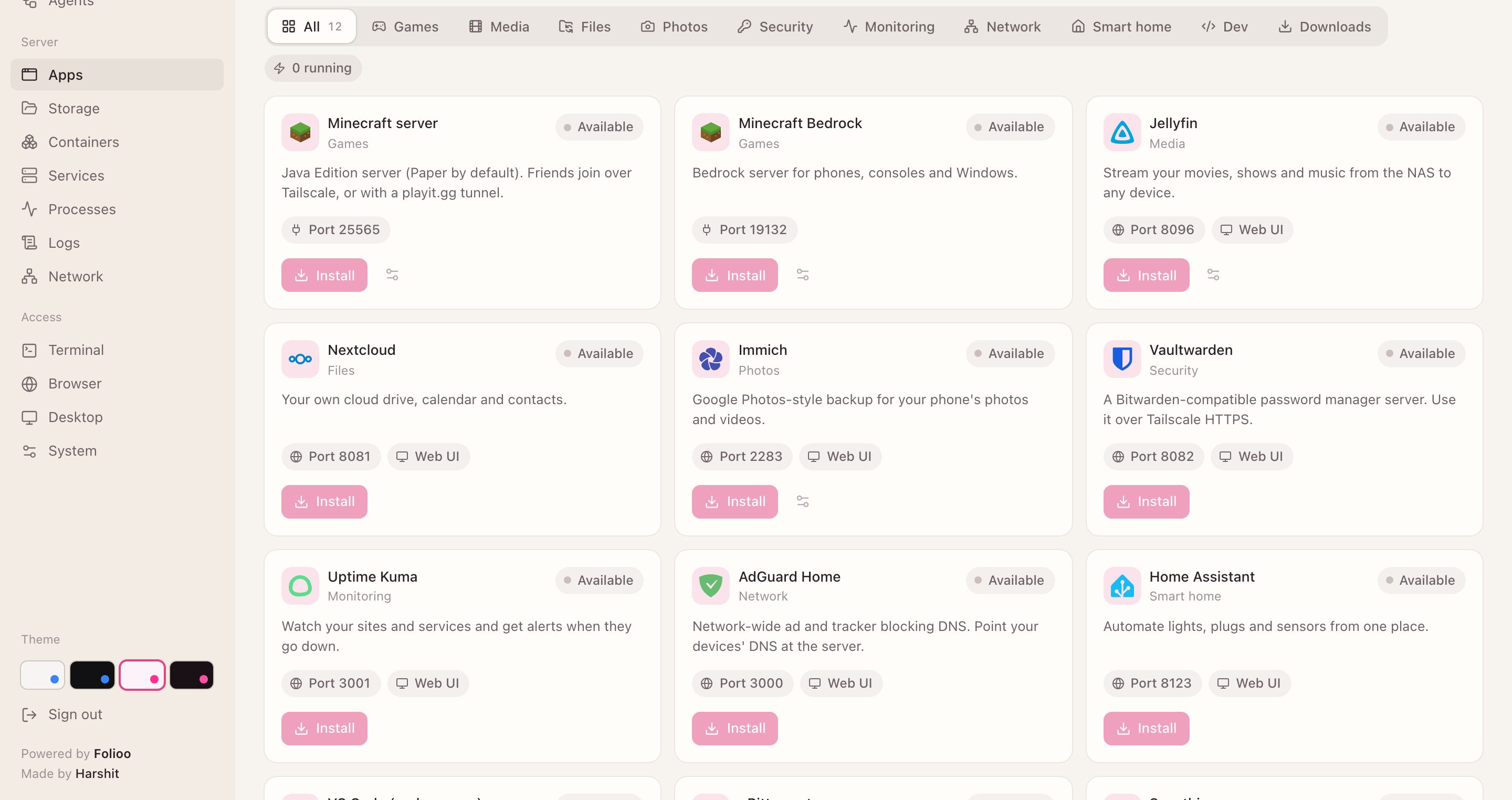
There's an Apps page with a dozen self-hosted apps, each one click away: Jellyfin for movies, Immich for phone photo backup, Nextcloud, Vaultwarden, AdGuard Home, Home Assistant, Uptime Kuma, VS Code in the browser, and, of course, a Minecraft server.
Click Install and it writes a Docker Compose file, pulls the image and starts it. Data lives in a folder next to the app, so stopping, updating or even uninstalling never touches it. Minecraft even gets a little console box in its card, so I can whitelist add a friend without opening a terminal.
The Apps page in the pink theme: Minecraft, Jellyfin, Nextcloud, Immich and more, each with a one-click install button
The part I actually built this for: the AI
Here's the bit that makes it mine.
The dashboard has an assistant built on Gemini, and it isn't a chatbot bolted on the side. It has tools. It can run commands, read and write files, check system stats, search the web, and start background agents for long jobs.
So instead of googling "how to set up nightly rsync backup systemd timer ubuntu" and stitching four Stack Overflow answers together, I type:
Back up /srv/nas/Photos every night at 3 and tell me when it's done.
And it does it. It writes the script, creates a systemd timer that survives reboots, and the job shows up under Scheduled tasks. When it finishes, the little bell in the corner rings.
A few things I'm quietly proud of:
- It streams what it's doing. You see Thinking, Researching, Running, Writing as they happen, with the actual command it's running. No black box.
- Hold to think harder. Tap send for a quick answer, or hold the button to dial up how hard Gemini thinks about it.
- It remembers. Tell it "my media lives in /srv/nas/Media" once and it carries that into every future chat.
- It can extend itself. Ask it to "install Ollama and add llama3" and it installs Ollama, pulls the model, registers it as a new AI provider, and the model just appears in the model picker. Anything that speaks the OpenAI API works the same way: Ollama, OpenRouter, OpenAI, Grok, Groq, LM Studio.
- It can install anything. If an app isn't in the catalog, it writes the Compose file itself and adds it to the Apps page.
It runs as my normal user, it explains anything destructive before doing it, and it asks before deleting data or exposing something publicly. Powerful, not reckless.
The System page: built-in Gemini plus add-your-own AI providers, scheduled tasks, scheduled power and password settings
Little things that made it feel finished
Some details exist purely because I'd be annoyed without them:
- A browser that doesn't die. There's a remote Chromium on the server with real tabs, history and saved logins. Close the dashboard, walk away, even reboot the server: it comes back with the same tabs. Downloads go straight to the NAS.
- Notifications that mean something. Disk nearly full, CPU running hot, a service crashed, the laptop's on battery, an agent finished. Each one rings the bell once, not forty times.
- The laptop never sleeps. The installer tells
systemd-logindto ignore the lid, so closing it doesn't take the server down. - Four themes, including a hot pink one, because it's my server and I can.
Setting it up
Everything's scripted. On a fresh Ubuntu Server:
That builds the Rust core and the dashboard, sets up the services, VNC, xrdp and Docker, and asks for a password and a Gemini API key. Then:
What I learned
Old hardware is wildly underrated. An i5 from six years ago with 16 GB of RAM can run a NAS, a media server, a Minecraft world and an AI agent without breaking a sweat, as long as the software on top isn't wasteful.
And building your own tools is still the best way to understand them. I know exactly how every byte gets from that shelf to my phone now, because I wrote the path.
The laptop isn't furniture anymore. It hums along on the shelf, and when I want something done, I just ask it.
The code is on GitHub if you've got a laptop of your own gathering dust.